Make logging in easier with passkeys
It's a given that you'll have more than a dozen online accounts. But logging into a website using only username/password means if your password was compromised, someone else can get to your account and do not-so-fun things with it.
2-Factor Authentication
This is where 2-Factor Authentication comes in. 2FA means in addition to your username/password, you'll have to provide an OTP code sent to your email/phone number, in which the code would only be valid for a limited time.
Some services would allow you to store a TOTP code in an authenticator app, this means you can get the code from an app instead of obtaining the OTP code through your email/phone number.
It's also possible to obtain OTP code through another device, but this depends on whether the service supports it.
Another option if you would rather not obtain the OTP code every time you log in is to use a Security Key (Yubikey, Titan Security Key, etc.). Although most services would ask you to set up TOTP first as a fallback in case you don't have a Security Key.
2FA is Enough-ish
For some services, a single login session lasts less than 24 hours, which means if you use this service during the weekdays, you'll have to log in every morning.
That's a daily routine of typing in username/password and supply an OTP code 😰. It might not sound like a lot of work, but it's slowly eating into your time.
WebAuthn to the Rescue
Also known as Passkeys (non-technical term). Essentially this means if you set things up correctly, you do not have to type in your username/password + OTP when logging in 🎉.
Passkeys can be stored on a Physical Security Key (some security keys only work as a 2FA device, you'll have to get the ones with Passkeys support).
Password Managers can store passkeys as well (Bitwarden, Google Password Manager, etc.).
Does This Mean I Don't Need a Password Manager?
Not quite. Most services still expect username/password + OTP as a fallback method for logging in, and using the same username/password everywhere is not advised. It is easier to remember a single pair of username/password, but services can be compromised, and if your password is out there, your other accounts are also at risk.
Passkeys in Action
Let's say you are logging into a website on a web browser, on PC:
- Passkey stored on
Physical Security Key: look for "login with passkey" button and follow the on-screen instructions. - Passkey stored in
Password Manager: you'll have to set up a password manager in your browser before logging in. Once you navigate to a website and click "login with passkey" button, your password manager should pop up and ask you to select which passkey to use.
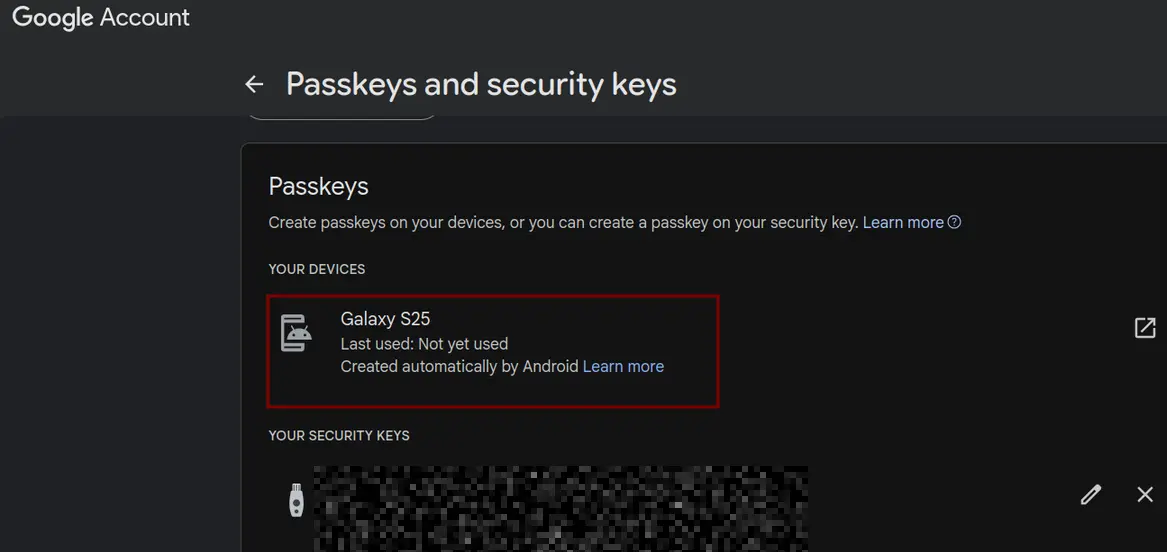
Keep your old phone just in case you might need the passkeys. You don't have to, but if you need the passkeys, it'll save you time from jumping through the hoops to unlock your account.